Introduction
← TRAKsi Tech Support: start here
A screenshot shows TRAK Tech Support exactly what you are seeing. No password needed.
Other TRAKsi Tech Support guides: Software Version · Alarm Log · Archive · Diagnostic File (DiDac) · Button-Press Log · ATC Magazine
-
-
With the screen you want on display, press the camera icon in the right column of softkeys.
-
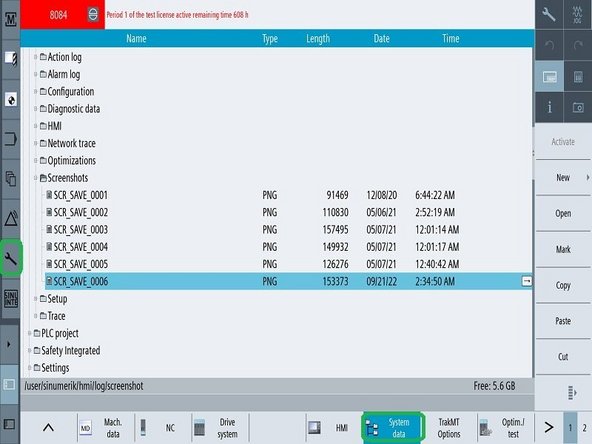
Go to [Setup] (wrench icon on the left) → [System data] (bottom row of softkeys).
-
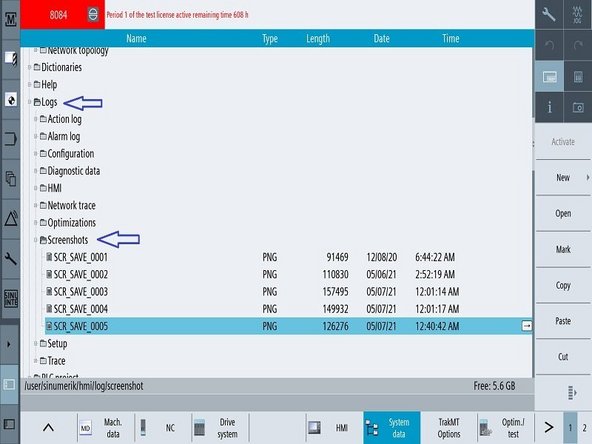
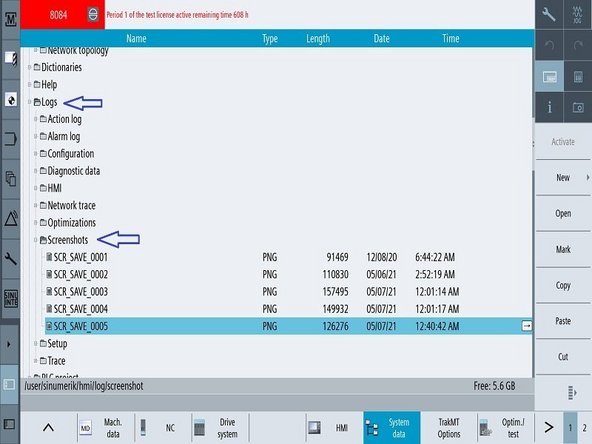
In the folder list, open Logs, then Screen shots.
-
Screenshots are numbered. The highest number is the newest.
-
-
-
Plug a USB stick into the USB port on the right side of the pendant.
-
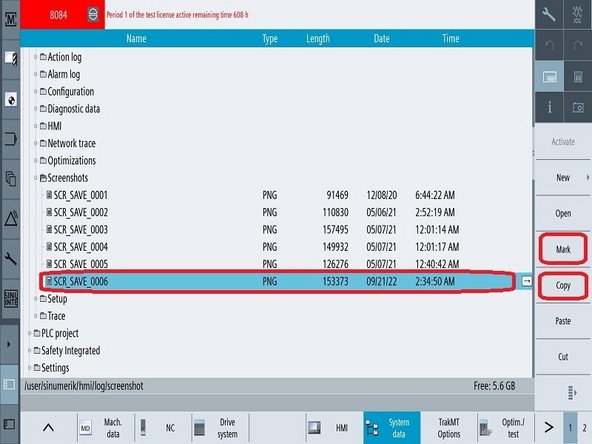
Select the screenshot, then press [Mark] and [Copy] in the right column of softkeys.
-
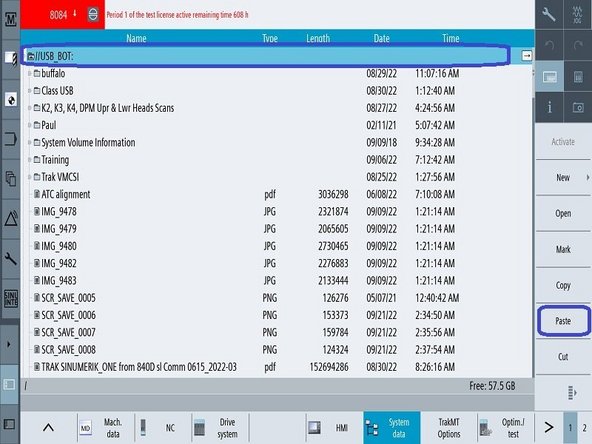
Select the USB stick in the folder list and press [Paste]. The screenshot is now on the USB stick.
-
Send it to TRAK with the other items on the TRAKsi Tech Support page.
-
Cancel: I did not complete this guide.
One other person completed this guide.

Team