Introduction
The guide explains how to set up OPC UA connection on Sinumerik control.
-
-
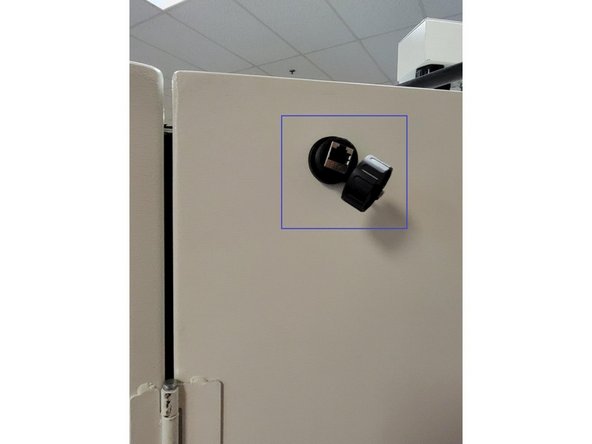
Connect the factory network to the control using an ethernet cable, plugged into the port shown in the picture.
-
-
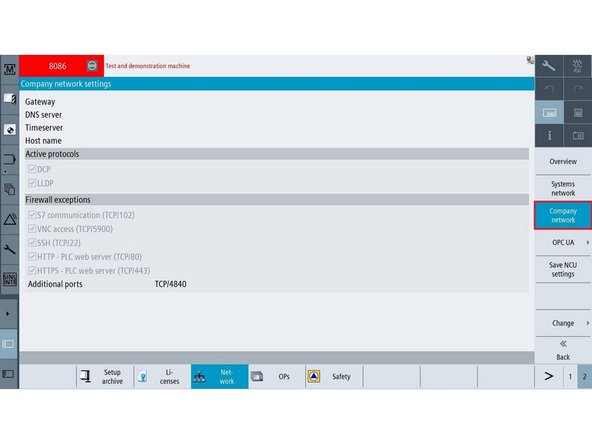
Go to Setup → 2 → Network and select the Company network Vertical Soft Key (VSK).
-
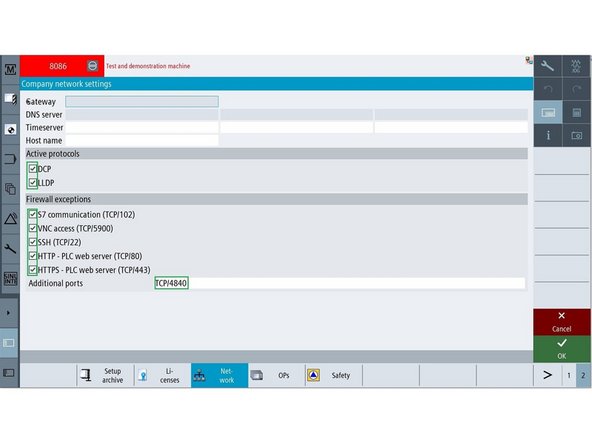
Check the boxes identified in the green boxes, add port TCP/4840 in the Additional ports field, and press OK.
-
-
-
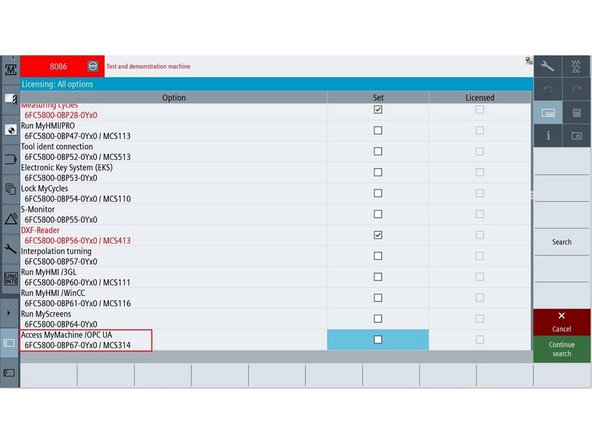
Obtain the license zip file containing the OPC UA license (6FC5800-BP76-0Yx0 / MCS314).
-
Follow Dozuki procedure 180 (VMCsi and TCsi – How to Load and Activate Siemens Licenses), steps 2, 3, and 4, to load the license onto the Siemens control. VMCs & TCsi - Load and Activate Siemens Licenses
-
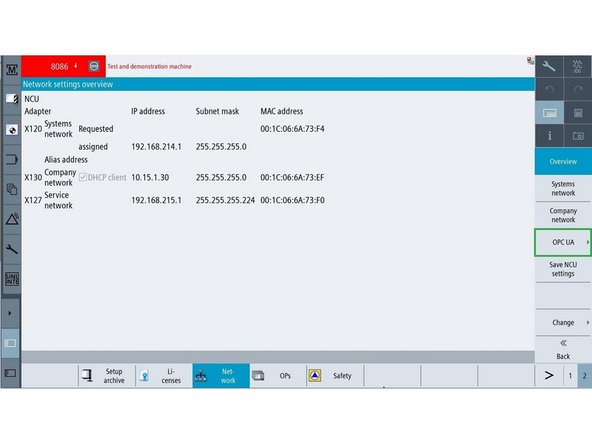
Go to Setup → 2 → Network and press the OPC UA Vertical Soft Key.
-
-
-
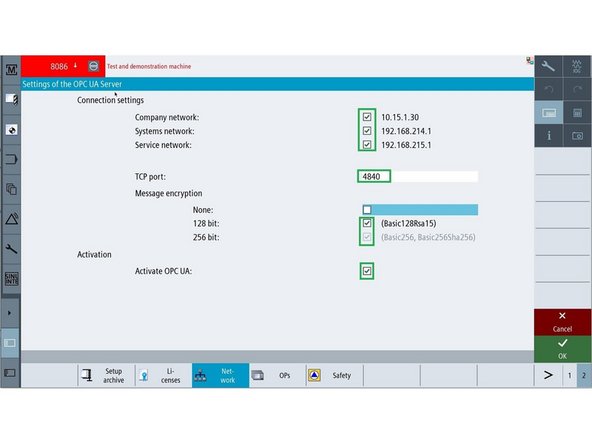
Press Vertical Soft Key(VSK) Settings. In the Settings page make changes as shown in Green boxes and press OK. Press Back VSK to get back to the main OPC UA page.
-
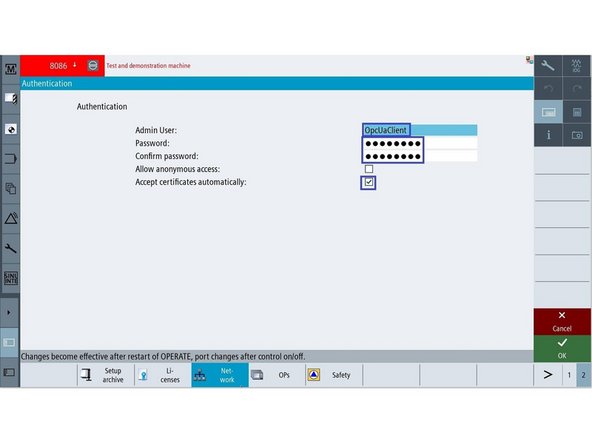
Press Authentication VSK. In the Authentication page press Change. Enter OpcUaClient (O, U and C are in upper case rest are in lower case) in Admin User field, enter TRAKmt2021 and TRAKmt2021 in both Password and Confirm password fields, check Accept certificates automatically box, and press OK. Power cycle the machine using elec. cabinet switch.
-
Authentication is the fifth VSK in picture 3.
-
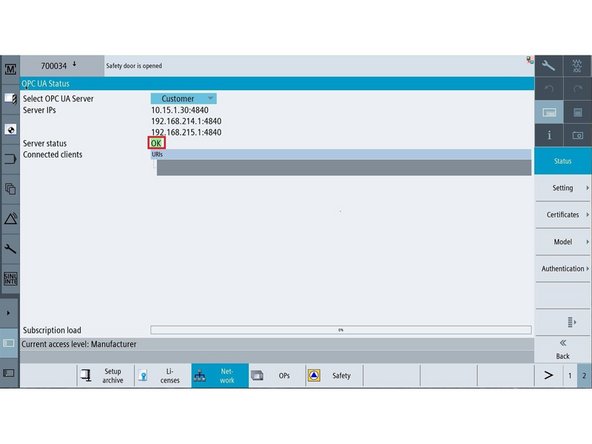
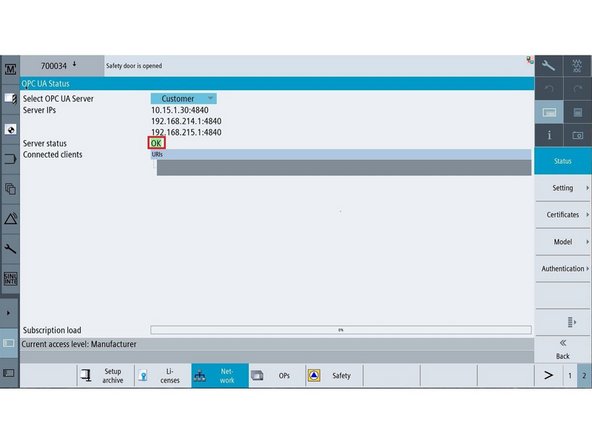
If OPC UA setup is done correctly, you will see OK for Server Status.
-
-
-
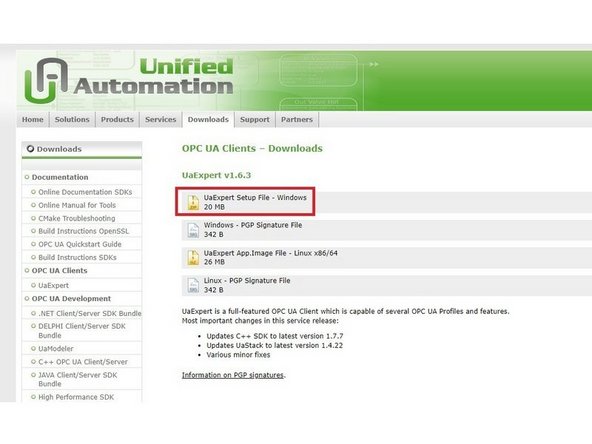
UAExpert software is used to validate OPC UA connection from the control to the computer. Download the latest version of UaExpert software for windows from the link. https://www.unified-automation.com/downl.... Install the software on your computer.
-
The version shown in the picture and the website version could be different. Whatever is available on the website will be the latest version.
-
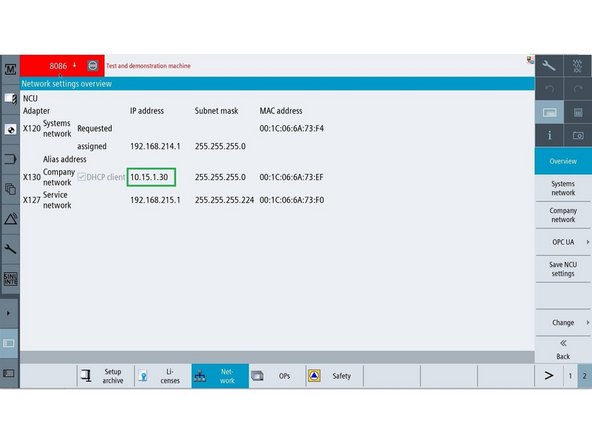
The computer with UaExpert software and Siemens control should be connected to the same network. You can verify this by checking the IP address of control and your computer. The control IP address can be found by going to Setup -> 2 -> Network, look for Company network.
-
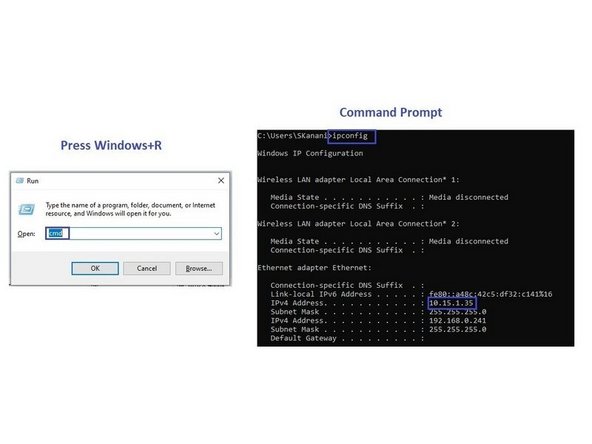
To check the IP address on the computer, press Windows + R key, you will see Run box, type cmd and press OK. In the pop up window type ipconfig and check the IP address of the computer. In this case computer IP address is 10.15.1.35. The first three numbers should be the same for control and computer, last number is different.
-
-
-
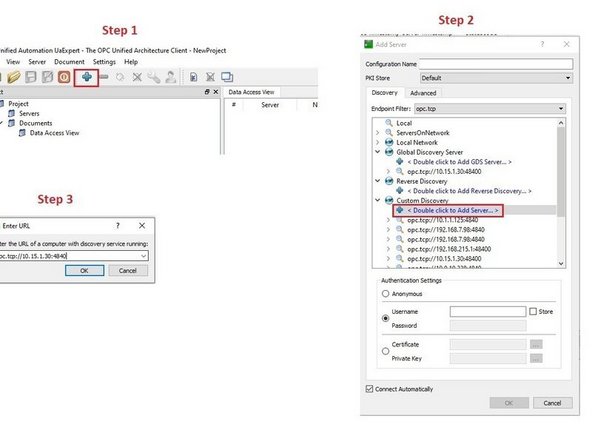
In the UaExpert screen, press + icon on the top of the screen. In the window double click on Double click to Add Server. In Enter URL screen, enter IP address of the control:4840. In this case IP address of Siemens control is 10.15.1.30, so 10.15.1.30:4840 is entered. You need to enter IP address of the control that you are working on.
-
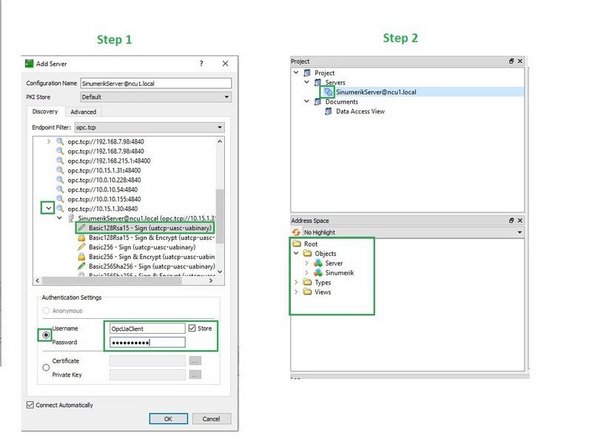
After entering the IP address of the control, expand the arrow on the left, select Basic 128Rsa15- Sign (uatcp-uasc-uabinary). Select Username and Password field, enter OpcUaClient as user name and TRAKmt2021 as a password, check Store box and press OK. You will see closed plug icon under Server and few folders at the bottom of the screen.
-
The closed plug icon indicates that OPC UA connection from computer to the control is established successfully.
-

Team
