

Prerequisites
Before continuing, verify the following:
- Trunnion is fully calibrated
- Trunnion has not been physically moved
- Machine is powered on and free of faults
- Manufacturer access level is available
Important: If the Trunnion is moved at any time after setup, collision protection will no longer be valid and the procedure must be repeated.
Step 1 — Record Trunnion Offset Data
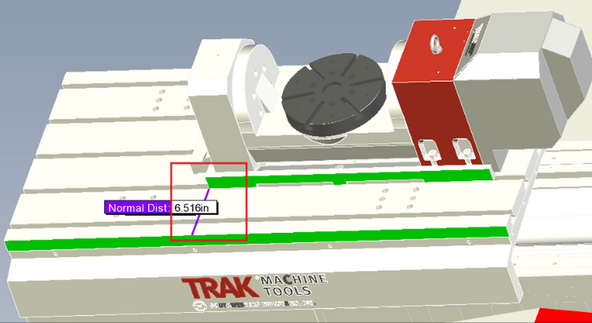
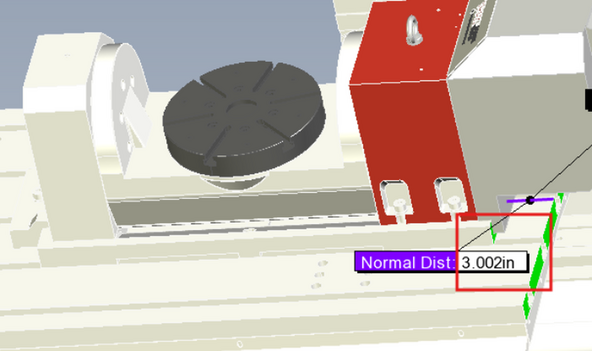
- Jog Trunnion to a visible measurement location on the X-table
- Record Trunnion X offset on the table surface
- Record Trunnion Y offset on the table surface
- Take a clear photo of Trunnion mounted to the X table
- Ensure no clamps or fixtures will move the base position
This measurement determines the Trunnion body position in the kinematic chain.
 |  |
Step 2 — Archive & Share Machine Data
- Create an archive
- Export archive to USB
- Send archive, offset values, and photo in email to TRAK Tech Support
Step 3 — Install Required Licenses
To enable the Protect MyMachine option, verify that the following Siemens licenses are installed.
- Protect MyMachine / 3D Primitives - 6FC5800-0BS03-0Yx0 / MCS415
- Simultaneous Recording - 6FC5800-0BP22-0Yx0
Once installed, collision protection icons will appear on the control.
Step 4 — Load Collision Protection Files
Engineering provides two loader programs:
- COLL_PROTECT_Mdata.MPF
- KIN_PROTECT_VMCxx.MPF
Perform the following:
- Set access level to Manufacturer
- Run COLL_PROTECT_Mdata.MPF in Auto mode
- Power cycle the machine
- Set access level to Manufacturer
- Run KIN_PROTECT_VMCxx.MPF in Auto mode
- Power cycle again
If error occurs during load, stop and notify Engineering.
Note: Once collision protection is set up, the trunnion position must not be changed. If the trunnion position is shifted, the kinematic chain will be affected and collision protection will no longer function correctly. In this case, the trunnion must be recalibrated, an archive taken, and the archive sent to TRAK Machine Tools so a new loader program can be generated to match the trunnion’s updated position.
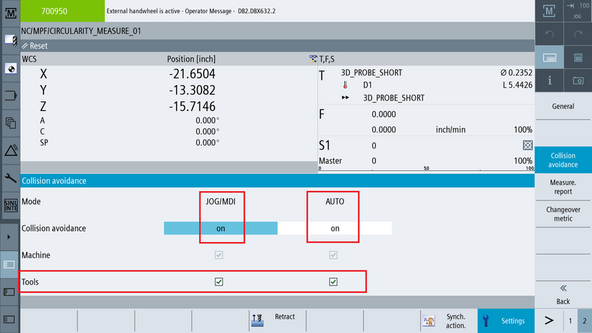
Step 5 — Enable Collision Protection
- Press [JOG] on MCP → Navigate to [Machine] → [Page 2] → [Settings] → [Collision Avoidance]
- Enable desired tool and machine body protection options
- Save settings
Step 6 — Validate Model Integrity
- Press [AUTO] on MCP → Navigate to [Machine] → [Simult. Record] → [Further Views] → [Machine Space]
- Jog machine slowly around Trunnion
- Confirm no unexpected alarms
- Confirm graphic bodies move correctly with axes
0 Comments