
Introduction
Install Run MyVirtual Machine (RMVM), the SINUMERIK ONE digital twin, on a Windows PC: download the files, install the software and the license server, assign the license, and load your machine file.
-
-
RMVM needs a Siemens license. The license is issued after your order is processed.
-
After your order is received, TRAK contacts you with a link to the getcid program.
-
Run getcid.exe on the computer where RMVM will be installed.
-
Take a screenshot of the window that opens and send it to TRAK. It shows the computer's Host Name and Composite ID, which Siemens uses to create your license.
-
Siemens emails you the license file. This can take some time.
-
Save the license file to your Documents folder.
-
Do not start the installation until you have the license file. It cannot succeed without it.
-
-
-
Go to RMVM New User Files Download.
-
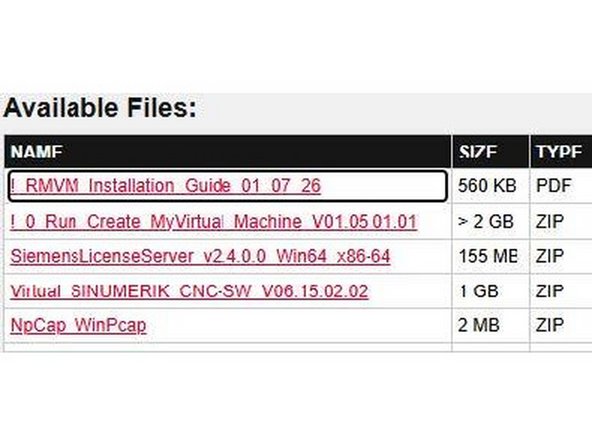
Download all files:
-
RMVM Installation Guide (PDF)
-
Run Create MyVirtual Machine V01.05.01.01 (over 2 GB)
-
SiemensLicenseServer v2.4.0.0 Win64 x86-64
-
Virtual SINUMERIK CNC-SW V06.15.02.02
-
NpCap WinPcap
-
The downloads can take a while, depending on your internet speed.
-
-
-
Open your Downloads folder.
-
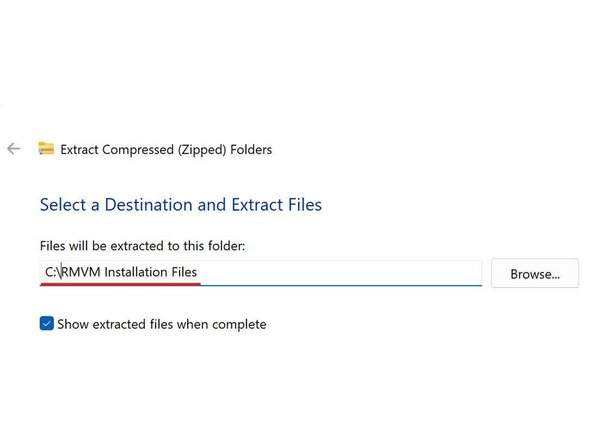
Right-click each zip file, select Extract All, and extract it to C:\RMVM Installation Files.
-
-
-
Open C:\RMVM Installation Files.
-
Open the Npcap_WinPcap folder and follow the instructions in its PDF installation file.
-
Open the Run_Create_MyVirtual_Machine_V01.05.01.01 folder and double-click Start.exe.
-
Reboot the computer if asked.
-
After the reboot, accept all defaults and let the installation finish. Reboot again if asked.
-
-
-
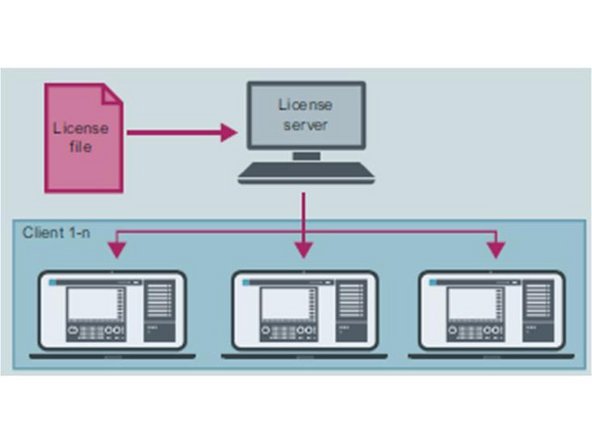
The most common RMVM license is a floating license. You can install RMVM on as many computers as you like, but only one user per license can run it at a time.
-
The license server can be a separate PC, or the same PC that runs RMVM.
-
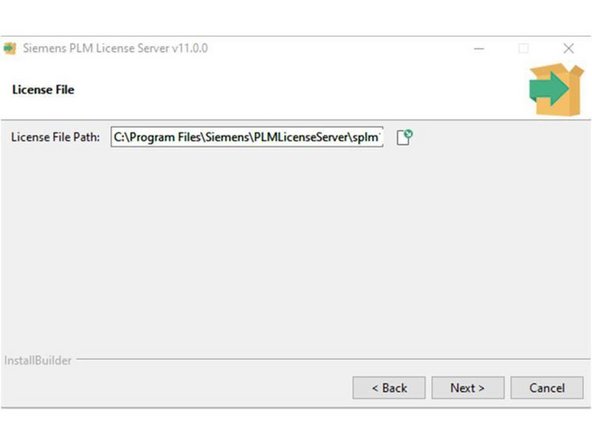
Open the SiemensLicenseServer folder and double-click SiemensLicenseServer_v2.4.0.0_Win64_x86-64.exe.
-
When the installer asks for the license file location, point it to the license file in your Documents folder.
-
Let the installation finish.
-
-
-
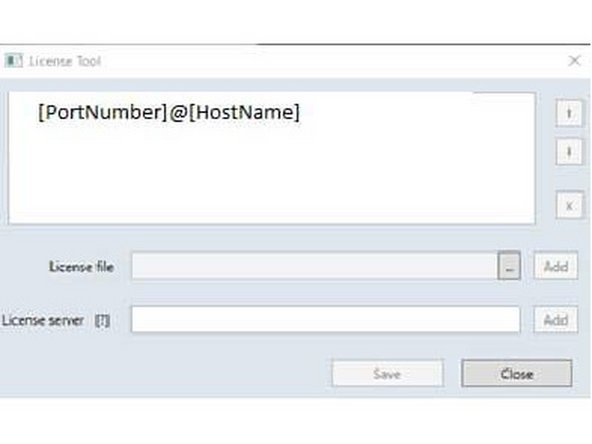
Open the License Tool: Start → Siemens Automation → RMVM_LicenseTool.
-
In the License server field, enter [PortNumber]@[HostName], using your computer's host name.
-
Example: 28000@MYPC
-
Click [Add], then [Save], then [Close].
-
-
-
Open the Virtual_SINUMERIK_CNC-SW_V06.15.02.02 folder in C:\RMVM Installation Files.
-
Double-click Start.exe. The installation wizard opens.
-
Follow the wizard and confirm the prompts.
-
Restart the computer when the installation finishes.
-
-
-
Copy your machine .vcp file into Documents\Siemens\Automation\Create and Run MyVirtual Machine.
-
Launch the software with the RUN MyVM icon on your desktop.
-
Click [Browse] in the icons at the bottom of the screen, then select your machine file.
-
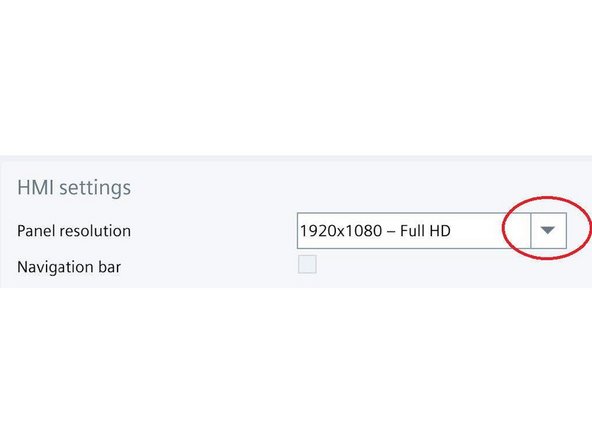
Under HMI settings, set Panel resolution to WVGA to start. You can change it later.
-
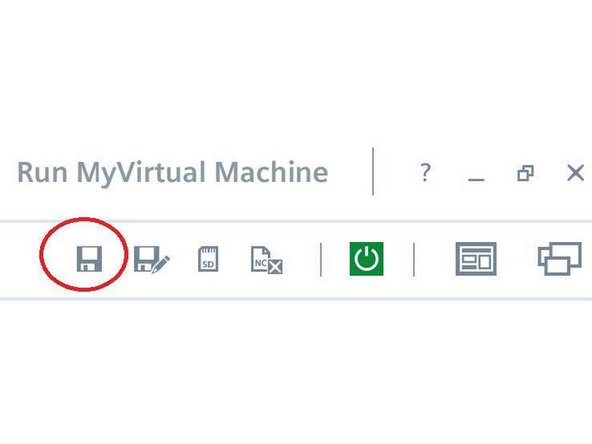
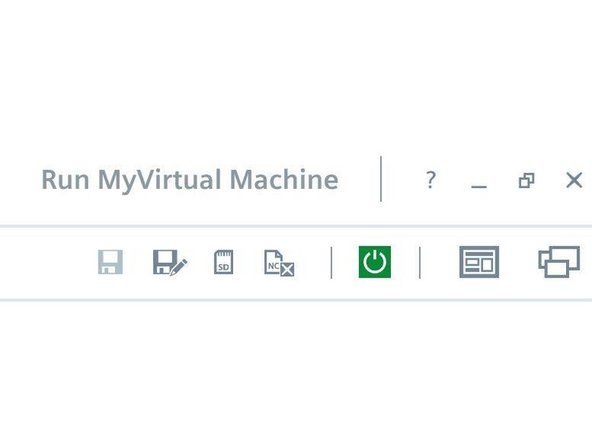
Press the [Save] button.
-
-
-
Press the green [Start Machine] button.
-
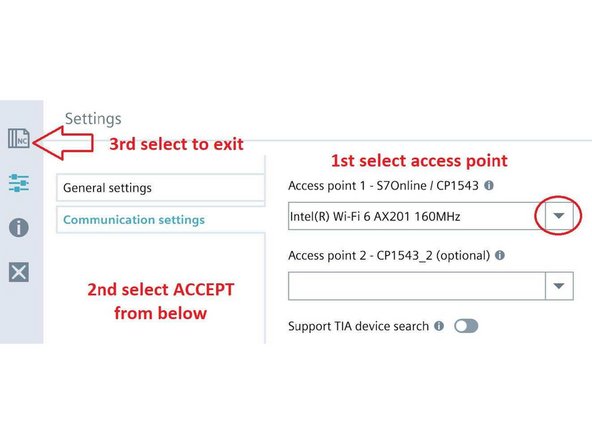
The first time only, the communication settings open:
-
Select your network adapter under Access point 1.
-
Select [Accept] at the bottom.
-
Select the NC icon at the top left to exit the settings.
-
Press the green [Start Machine] button again. The machine boots.
-
-
-
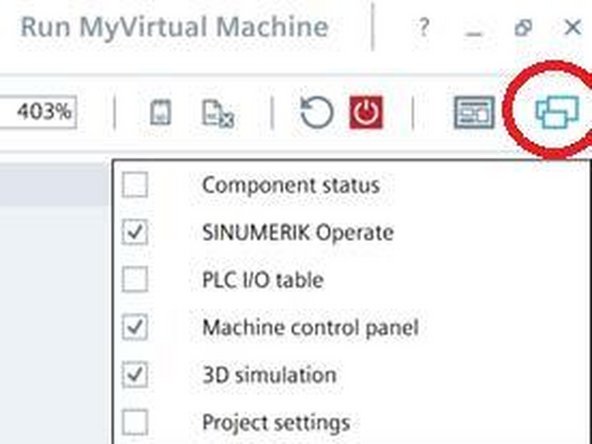
Click the window layout icon at the top right of the screen.
-
Uncheck every box except SINUMERIK Operate, Machine control panel and 3D simulation.
-
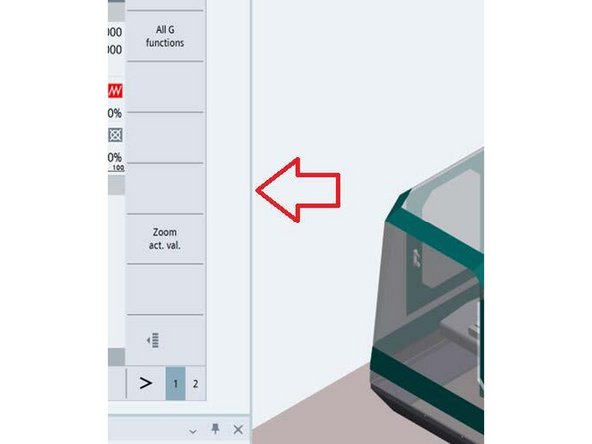
To resize the screens, hover over the vertical bar between the Operate and 3D screens, then click and drag it.
-
-
-
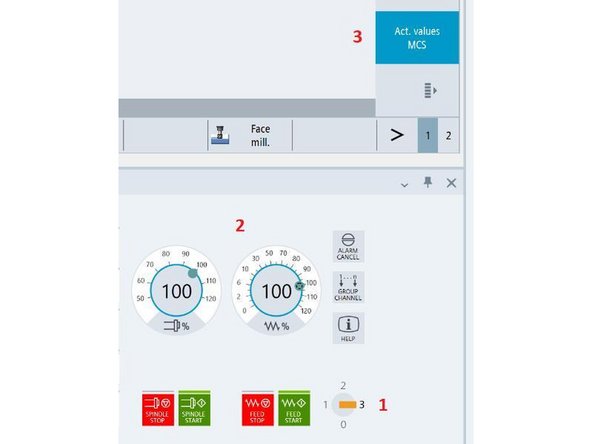
Do these three every time you launch the software:
-
(1) Set the access level to 3 by clicking 3 on the key switch.
-
(2) Set the spindle and feed overrides to 100%.
-
(3) Click [Act. values MCS].
-
RMVM is ready to run.
-
-
-
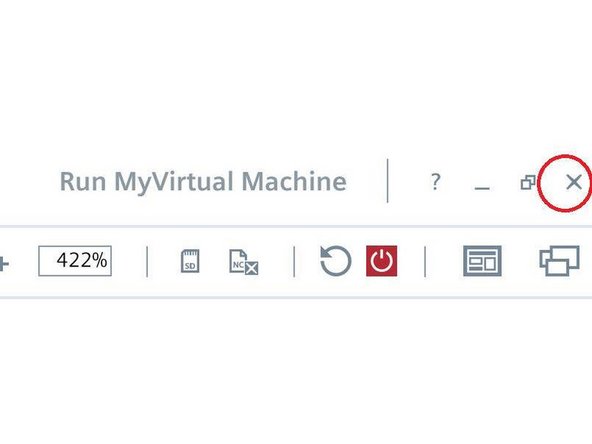
Click the X at the top right of the screen to close the software.
-
When asked to save, select Yes to keep your work, or No to discard it.
-
Next launch: your machine file is already selected. Press [Boot Project]. Your screen settings are kept.
-

Team