

This wiki provides a structured summary of the Auto Door option for TRAK TCsi machines. Content is sourced directly from the TCsi Operating Manual (34241) and TCsi Service Manual (34242).
For an overview of Automation Ready and Auto Door functions across both VMCsi and TCsi platforms, refer to:
TCsi Service Manual 9.6 Auto Front Door
TRAK manufactures Auto Front Door option that will allow an end user to have the machine open and close the Front door automatically.
The Auto Door key features include:
- Position and forced controlled servo motor.
- End of program auto open.
- Machine cycle stop with Auto Door open.
- Digital I/O controlled.
- Front Door open and close outputs contacts.
- Front Door remote open/close request.
TCsi Service Manual 9.6.1 Features Description
| Feature | Description |
|---|---|
| MCP Auto Door Open/Close | When enabled the Auto Door will toggle open and close with every press of the MCP Auto Door button. |
| M0 Auto Door Open | When enabled the Auto Door will open automatically when an M0 is processed. |
| M30 Auto Door Open | When enabled the Auto Door will open automatically when an M30 is processed. |
| Auto Door Close with Remote Cycle Start | When enabled the Auto Door will close whenever a Remote Cycle Start input is triggered. |
| Front Door Close Output | These are a pair of relay contacts that can be used to indicate to the automation system that the operator Front Door is closed. |
| Front Door Open Output | If Front Door Option is installed. This is a normally open contact from the Front Door open switch that can be used to indicate when the machine’s Front Door is fully open. |
| Request Front Door Open Input | If Front Door Option is installed. This input will trigger the Front Door to open if there is No E-stop condition and the spindle is not turning. |
| Request Front Door Close Input | If Front Door Option is installed. This input will trigger the Front Door to close if there is No E-stop condition. |
| M-code driven Auto Door Open | When triggered it will cause the Auto Door to open. M33 = Open Front Door |
TCsi Service Manual 9.6.2 Enable / Disable Auto Door Options
TRAK has a customized screen available for enabling and disabling the Auto Door Options.
To access the screen:
- At the upper right corner of the display, press [M].
- Press SETUP from the left VSK menu bar.
- Select TrakMT Options from the HSK.
- Scroll down to the Auto Front Door Option section.

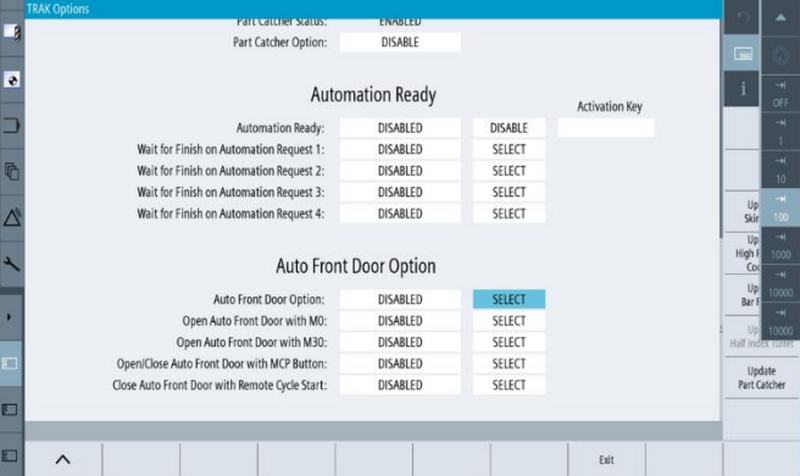
Auto Front Door Option
- Can be Enabled or Disabled in the drop-down menu. Takes effect immediately; no restart needed.
Open Auto Front Door with M0
- When Enabled, the Auto Door opens every time an M0 is commanded.
Open Auto Front Door with M30
- When Enabled, the Auto Door opens every time an M30 is commanded.
Open/Close Auto Front Door with MCP Button
- When Enabled, the Auto Door toggles between open/close every time the MCP Auto Door button is pressed.
Close Auto Front Door with Remote Cycle Start
- When Enabled, the Auto Door closes whenever the Remote Cycle Start input is set high (24V).
(Note: This function is only available when the Automation Ready Option is installed alongside the Auto Door Option.)
TCsi Service Manual 9.6.3 Troubleshooting
The TRAK Diagnostic Screen can be used to view the status of all the Digital I/O signals for troubleshooting purposes.
| Symptom | Possible Problem |
|---|---|
| Motor "Thump" noise on power up or E-stop Release | This is not a failure; it is the normal behavior of the motor. |
| Motor moves slowly to open position at initial power on and after E-stop | This is not a failure; it is the normal behavior of the motor. Any time power is cycled or the E-stop is pressed, the Auto Door motor needs to go to an open position first to identify where the open position is. |
| Motor Fault Alarm 701251 or 701256 intermittently after door has been closed | Possibly motor setup position is incorrect. Use Clear Path Software to set up motor position correctly. |
| Door does not completely close. No motor fault is given and door open message remains displayed. | Possibly motor setup position is incorrect. Use Clear Path Software to set up motor position correctly. |
0 Comments