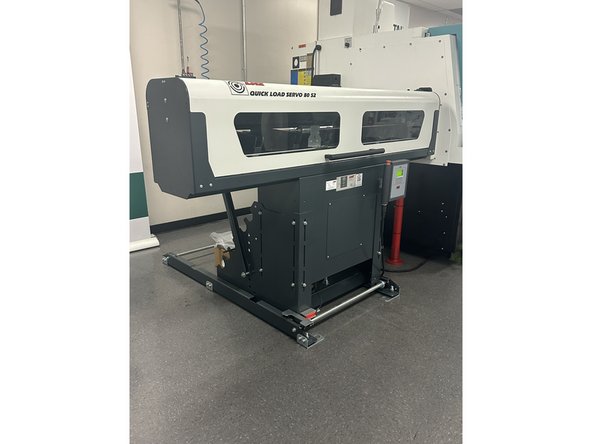
-
-
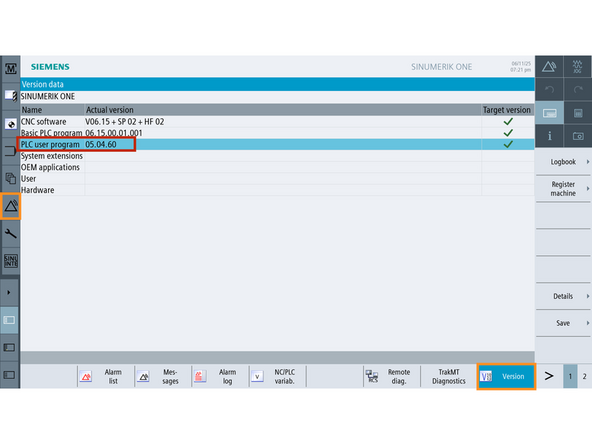
Ensure the PLC User Program is version 05.04.69 or higher.
-
To verify, go to [Diagnostics] → [Version].
-
Check the PLC User Program version — this is the current version.
-
If an upgrade is needed, follow the TCsi - Create My Config Expert Software Upgrade guide.
-
Run MyScreens license (6FC5800-0BP64-0Yx0) must be purchased and activated.
-
Bar feed inputs bit 14512[37] bit 2 to be high in old LNS model 80 S2 model.
-
-
-
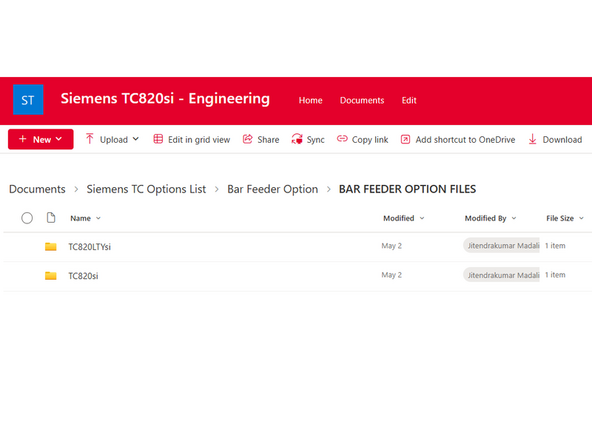
Locate the correct easyscreen.ini file in SharePoint:
-
-
-
Download the file and save it to your USB drive.
-
-
-
-
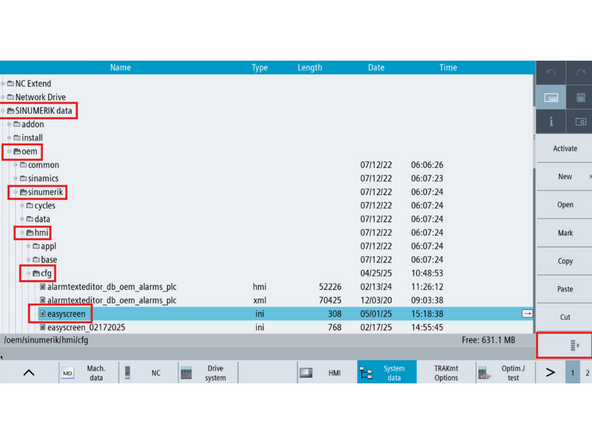
On the TCsi, navigate to [Setup] → [System Data].
-
In the folder structure, go to: SINUMERIK data → oem → sinumerik → hmi → cfg
-
Highlight the current easyscreen.ini file.
-
Press the [Right Arrow] button at the bottom of the screen to open file options.
-
Tap [Properties].
-
Rename the file to easyscreen_ORIG.
-
Press [OK] and return using the [Left Arrow] to go back.
-
-
-
Insert the USB drive into the TCsi machine.
-
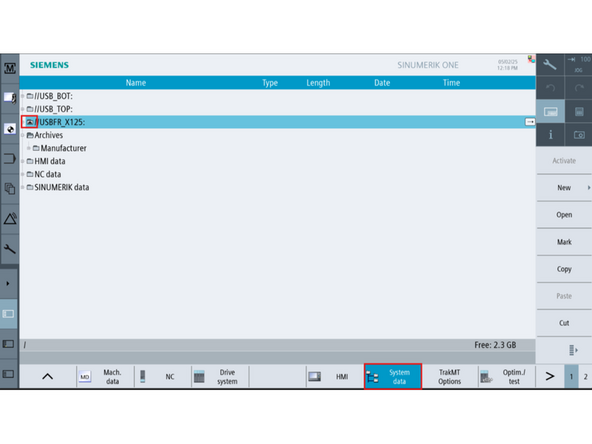
Navigate to: [Setup] → [System Data]
-
Select the correct USB source (USB_TOP, USB_BOT, or USBFR_X125) — look for the folder icon with an up arrow.
-
Highlight the easyscreen.ini file on the USB.
-
Press [Copy]
-
In the folder structure, go to: SINUMERIK data → oem → sinumerik → hmi → cfg
-
Press [Paste] to add the new easyscreen.ini file to the folder. The original file was renamed and will remain in the directory.
-
-
-
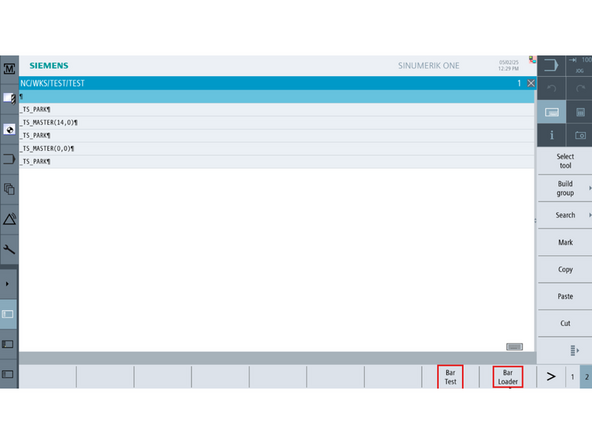
Go to the Program Edit area.
-
Verify the [Bar Test] and [Bar Loader] softkeys are now available.
-
Press [Bar Test] to access configuration options.
-
Use dropdowns to select the appropriate settings.
-
Press [Accept] to generate a BAR_TEST cycle.
-
-
-
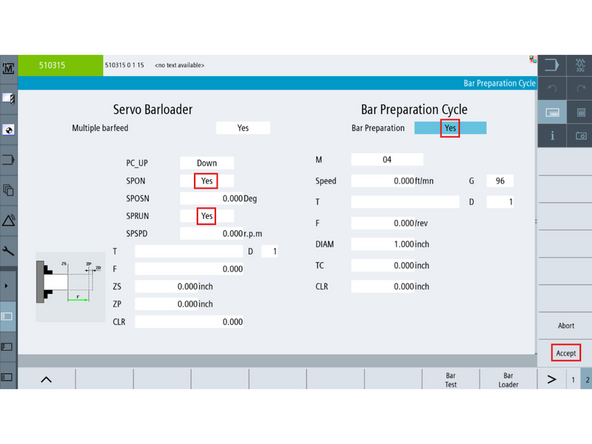
Press [Bar Loader] to access loader setup.
-
Use the dropdown menus to confirm or modify your settings.
-
Refer to Picture 2 for all available configuration options.
-
Press [Accept] to finalize and generate the BAR_MASTER cycle.
-
![On the TCsi, navigate to [Setup] → [System Data].](https://d3t0tbmlie281e.cloudfront.net/igi/trakmtsupport/GL4COGRM4QClDdvK.medium)
![Navigate to: [Setup] → [System Data]](https://d3t0tbmlie281e.cloudfront.net/igi/trakmtsupport/cV5QOHRMrCCDUrQL.medium)
![Verify the [Bar Test] and [Bar Loader] softkeys are now available.](https://d3t0tbmlie281e.cloudfront.net/igi/trakmtsupport/UPFZOeRMdfC6ZbKY.medium)
![Press [Bar Test] to access configuration options.](https://d3t0tbmlie281e.cloudfront.net/igi/trakmtsupport/UPPKOeRMxCCJRfOr.medium)
![Press [Bar Loader] to access loader setup.](https://d3t0tbmlie281e.cloudfront.net/igi/trakmtsupport/B2ZGOeRMMGCJkajy.medium)

Team
