-
-
This step is optional and only needed to save tool data.
-
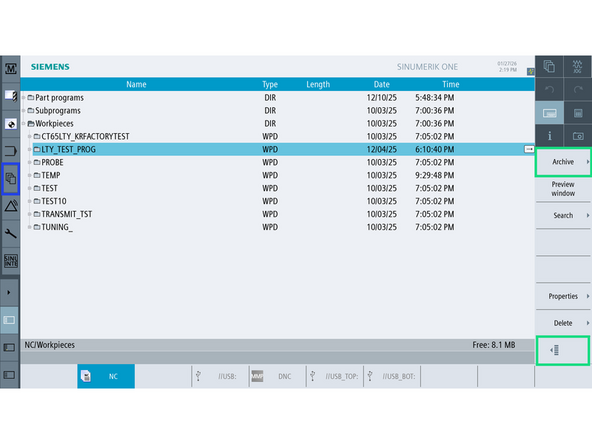
Go to [Program Directory]
-
Open the Workpiece folder. Select any subfolder or program inside Workpiece.
-
Select [Tab 2] (bottom right) → [Archive] → [Save Setup Data]
-
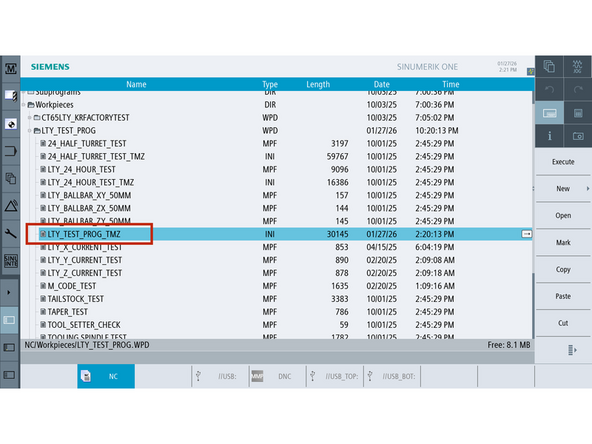
The control will generate a file named: ProgramName_TMZ or FolderName_TMZ
-
This TMZ file contains the tool table and setup data.
-
-
-
-
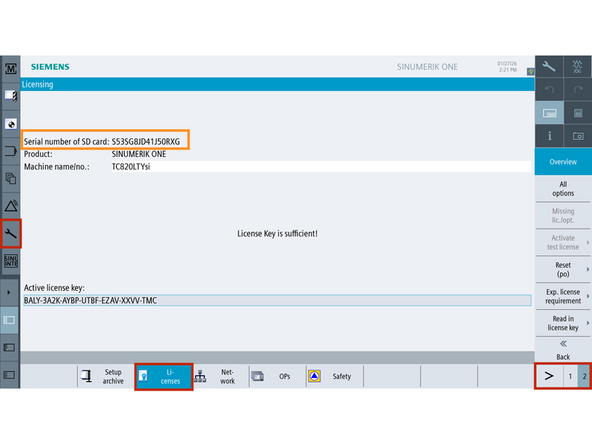
Navigate to [Setup] → [Page 2] → [Licenses]
-
Record the SD card serial number and send it to TRAK Customer Support.
-
-
-
Go to [Setup] → [TRAKmt Options]
-
Scroll to the bottom to find Half Index Turret.
-
Select ENABLE from the drop-down.
-
Enter the 9-digit key from support
-
Select [Update Half Index Turret] on right.
-
Power cycle the machine.
-
-
-
-
Unload all tools from the tool table.
-
Go to [Machine]
-
Press [MDI] on the MCP.
-
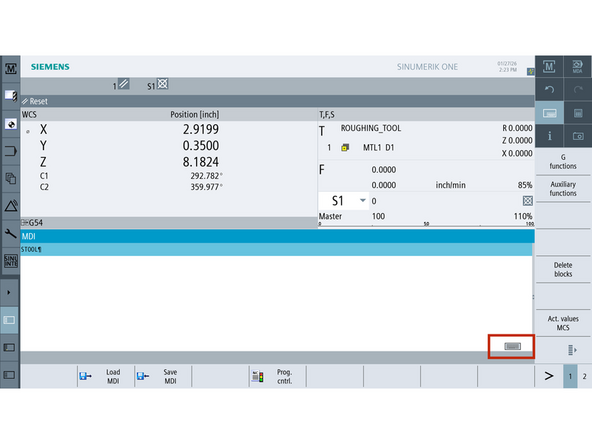
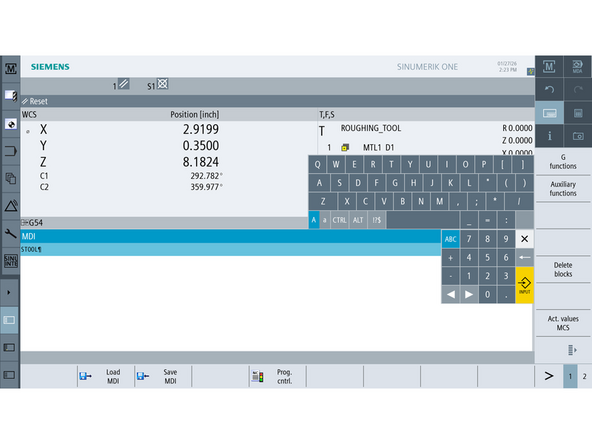
Press the keyboard icon bottom right of the screen to bring up the keyboard.
-
Type: STOOL
-
Press [Cycle Start]
-
Power cycle the machine.
-
-
-
This step is optional and only needed to read in previously saved tool setup data.
-
Go to [Program Directory]
-
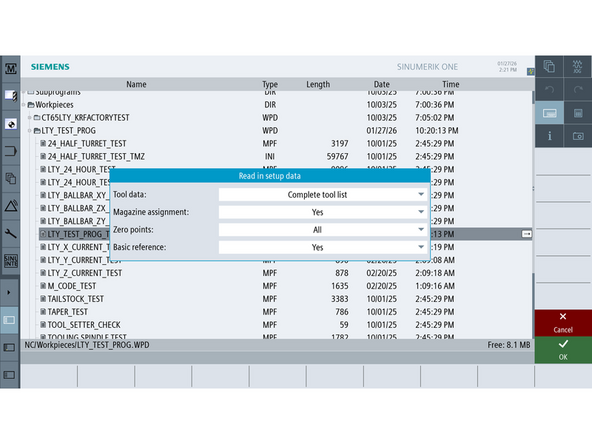
Locate & double click the saved _TMZ file from Step 1.
-
When prompted, click [OK] to read in the data.
-
Tool setup data will be repopulated automatically.
-
![Go to [Program Directory]](https://d3t0tbmlie281e.cloudfront.net/igi/trakmtsupport/WPSrXfRMj1lLTMZd.medium)
![Go to [Setup] → [TRAKmt Options]](https://d3t0tbmlie281e.cloudfront.net/igi/trakmtsupport/OEIlXgRMWmCJvXnB.medium)

Team
